
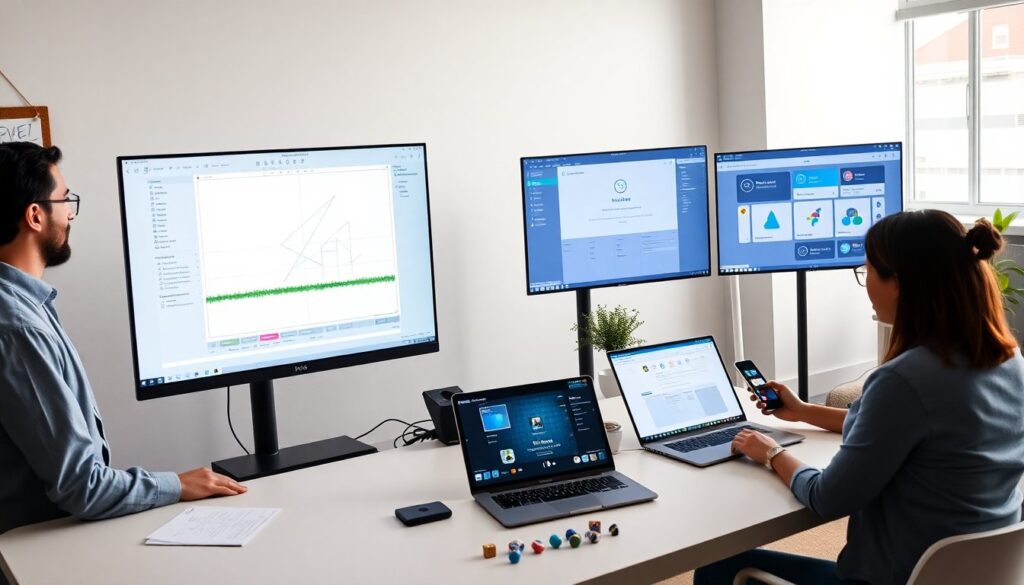
GFXMaker helps teams create game graphics quickly. The tool automates routine tasks and speeds up asset production. It suits indie developers, small studios, and freelance artists. The article explains features, a step-by-step workflow, and practical tips. Readers will learn how to make a first asset and how to fit GFXMaker into a real production pipeline.
Key Takeaways
- GFXMaker accelerates game graphic creation by automating routine tasks, making it ideal for indie developers, small studios, and freelancers.
- The tool blends raster, vector, and animation features, enabling teams to produce UI elements, sprites, and marketing art efficiently.
- GFXMaker’s live layers, export presets, and collaboration tools reduce export errors and streamline asset iteration within game production pipelines.
- Built-in asset libraries and templates help maintain consistent visual language and speed up UI design and layout.
- Following workflow best practices like clear naming, layer locking, and using export presets improves output quality and minimizes rework.
- GFXMaker integrates seamlessly with popular game engines and version control systems, supporting smooth collaboration and fast iteration in game development.
What Is GFXMaker And Who Should Use It
GFX maker is a hybrid graphics app that blends raster, vector, and animation tools. Teams use it to produce UI elements, sprites, and marketing art. Indie studios use GFXMaker to cut design hours. Freelancers use GFXMaker to deliver files that match engine specs. Art directors use GFXMaker to enforce consistent style across assets. The interface reduces repetitive work and lets creators focus on composition and color. The tool supports common game formats and fits into modern pipelines.
Core Features That Speed Up Asset Creation
GFXMaker includes live layers, export presets, and collaboration features. The app saves time on iteration and handoff. It tracks changes and lets teams sync assets to cloud storage. GFXMaker connects to common version control systems and game engines. The tool provides fast previews and device-specific previews. Users can generate scaled atlases and batch-export multiple resolutions. The app keeps file sizes small and export steps predictable. Teams see fewer export errors and faster approvals when they use these features.
Layered Editing, Vector Tools, And Animation Support
GFXMaker offers layered editing with clear hierarchy and locking. Designers move, hide, and rename layers with one action. The vector toolbox creates sharp UI and scalable icons. The app keeps paths editable so artists refine shapes without redraws. Animation support lets users build simple rigs and frame sequences. The timeline uses keyframes and onion-skin preview. The tool exports sprite sheets and GIFs for quick testing. Teams use these capabilities to iterate art and animation faster.
Built-In Asset Library, Templates, And Export Presets
GFXMaker ships with a searchable asset library and starter templates. Artists reuse UI kits, icons, and common shapes from the library. The templates speed layout of menus, HUDs, and store screens. Export presets handle platform-specific requirements and compression settings. Designers pick presets for consoles, mobile, or web and export without guesswork. The library syncs across team accounts so everyone uses the same base assets. Teams reduce rework and keep visual language consistent.
Step-By-Step: Create Your First Graphic In GFXMaker
Open GFXMaker and start a new project with a template. Import reference art or pick a template from the library. Create a base layer and block out the shape with vector tools. Add color and shading on separate layers. Build a simple two-frame animation if the asset needs motion. Apply an export preset for the target platform. Use the preview panel to check scale and alignment. Export the final asset and add it to a sprite atlas or UI bundle. The process takes minutes for small assets.
Workflow Tips And Best Practices For Sharper Results
Start with a clear naming convention and stick to it. GFXMaker layers should use short, descriptive names. Designers lock finished layers to avoid accidental edits. Artists keep vectors editable until the final export. Use export presets during development to catch scale issues early. Keep a shared asset library and prune unused items monthly. Review assets on device regularly and not only on a desktop monitor. Use version control for major iterations and tag stable builds for the team. These practices reduce rework and speed reviews.
Pricing, Integrations, And Alternatives To Consider
GFXMaker offers a free tier with basic tools and a paid plan with collaboration and cloud sync. Teams compare plans by active seats and storage limits. The tool integrates with Unity, Unreal, Git, and common cloud drives. Developers export files directly into engine folders or push assets to a CI pipeline. Alternatives include traditional editors and specialized sprite tools. Teams pick GFXMaker when they need an integrated workflow and fast iteration. They pick alternatives when they need advanced photo editing or heavy 3D features.